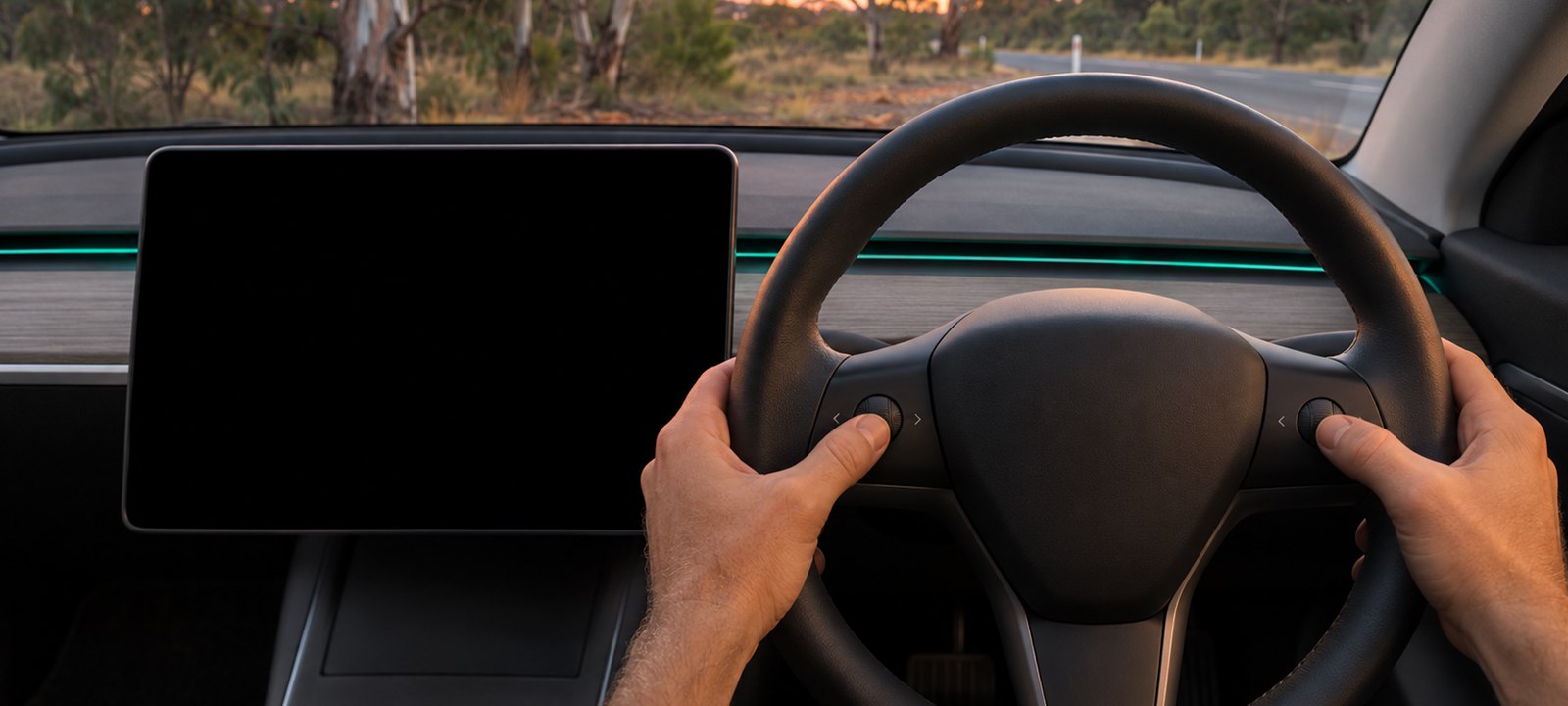
It’s one of the more unsettling things that can happen in a Tesla. Almost everything runs through the touchscreen, so when it goes black, it can feel like the whole car has stopped working.
That’s what happened to one Australian owner this month. The sound still worked, but the screen showed nothing and they couldn’t shift out of Park. The fix turned out to be on the steering wheel.
Here’s how to restart the touchscreen, what to expect while it restarts, and what to do if it’s still not right.
How to restart the touchscreen
These are Tesla’s own steps:
- Shift into Park. Only do this when you’re stopped somewhere safe.
- Hold down both scroll buttons on the steering wheel until the touchscreen turns black.
- Wait about 30 seconds for the touchscreen to restart on its own.
Tesla shows the same steps for older and newer steering wheel designs, and the Model Y works the same way as the Model 3.
Source: Tesla, Restarting the Touchscreen.
What to expect while it restarts
While the touchscreen restarts, it isn’t just the map that disappears. Tesla says the car’s status display, safety warnings and backup camera aren’t visible during the restart either. That’s why it should only be done while you’re stopped and in Park, never while driving.
Restarting the touchscreen doesn’t restart or switch off the rest of the car. It’s the screen only.
If the screen still isn’t right
If the touchscreen is still unresponsive or behaving oddly a few minutes after the restart, Tesla’s next step is to power cycle the car:
- Shift into Park.
- On the touchscreen, go to Controls, Safety, Power Off.
- Leave the car alone for about 2 minutes: don’t open the doors, press the brake or touch the screen.
- Press the brake pedal or open a door to wake the car.
If the screen is completely black, you won’t be able to reach the Power Off button, so try the steering wheel restart again first.
Still not right? Book a service visit in the Tesla app, and describe what happened and when. A photo or a short video of the screen helps.
A good habit before a long drive
Most owners never need this. But it’s worth knowing before you’re on a long country drive, a long way from the nearest service centre. Read it once, and tell the other drivers in your family how it works.
Planning a trip this summer? Our 5 minute check before a Tesla road trip covers the rest of the practical side.
Where this came from: an Australian owner’s question on Whirlpool, and another owner who replied that it had happened to them too (Whirlpool).
Give your Tesla a logbook that writes itself
CAILO Connect captures every trip automatically. 7-day free trial on the 1-vehicle plan.
Start Free TrialGeneral information only, not tax, financial or legal advice. CAILO is not a registered tax agent, so speak to one before relying on this for a claim or return.